Forward your support address (like support@yourshop.com) to TideReply. Emails land in your inbox next to your chats, and the AI drafts replies that go out from your own address. Nothing is sent to customers until you turn AI replies on.
The email channel is in beta.
- 1
Add your support address
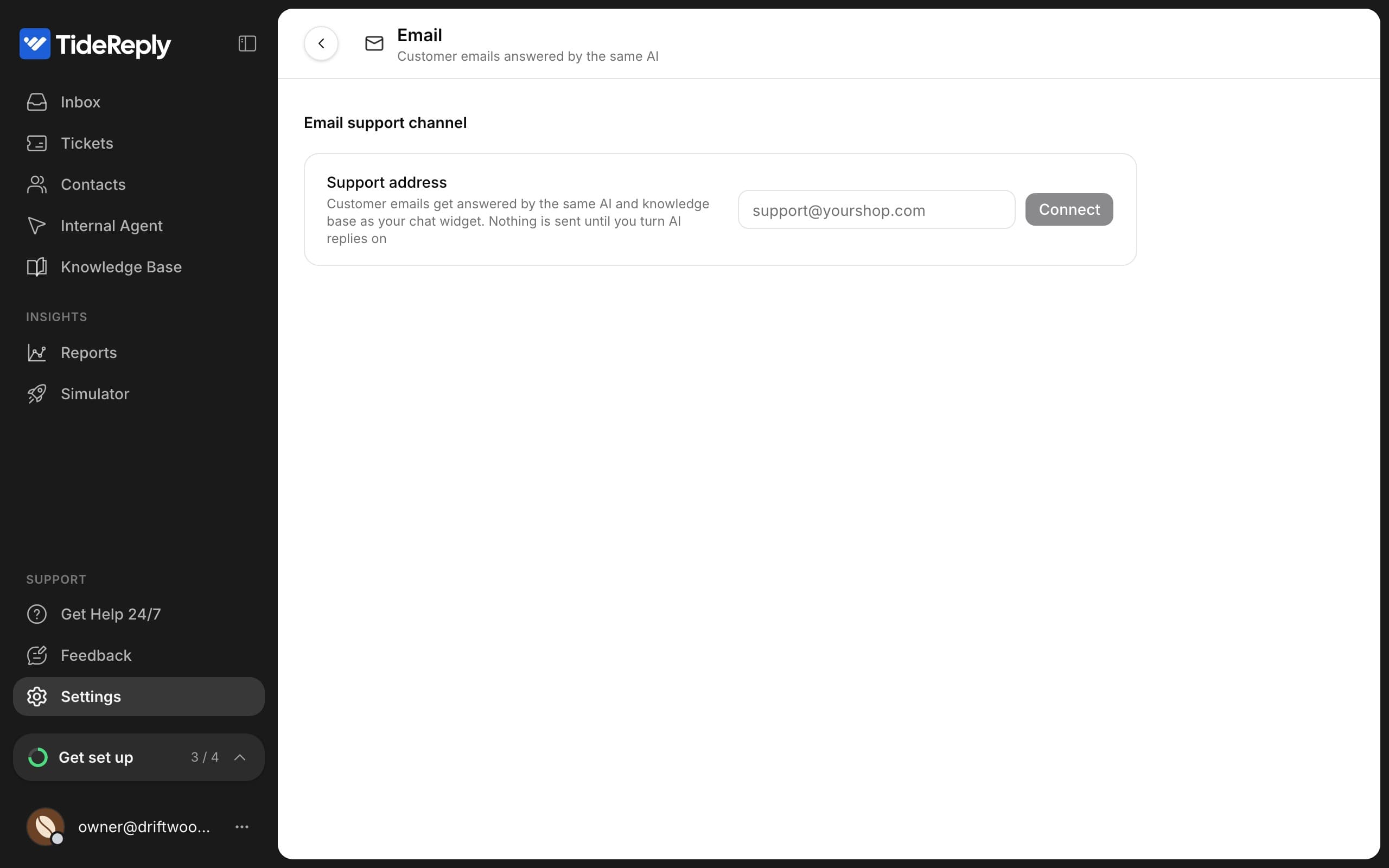
In Settings, open Email under Channels. Enter your Support address and click Connect. TideReply gives you a forwarding address.
- 2
Forward your support mail
In your email provider (
 Google Workspace,
  Microsoft 365, cPanel or other), add a forwarding rule from your support address to the forwarding address TideReply shows. Then click Send forwarding test. When the test arrives, the step shows Verified.
 - 3
Add the DNS records
To send replies from your own address, add the two DNS records shown (one TXT record and one CNAME record) at your domain's DNS host. Use the copy buttons for the exact values. TideReply checks every few seconds and shows Domain verified when they're found. This can take a few minutes, sometimes longer.
We also recommend the SPF and DMARC records shown under Recommended. They help your replies reach the inbox.
- 4
Review drafts first
Until you turn AI replies on, every AI reply waits as a draft. Open an email in Inbox to see the draft, then Send, Edit or Discard it.
- 5
Turn on AI replies
When you're happy with the drafts, turn AI replies on in the email channel's settings. The AI then sends replies it's confident about on its own. Anything it isn't sure about stays a draft for your team.
Settings worth knowing
- Delivery window: AI replies go out a few minutes after the customer's email (you set the range), so a batch of replies never goes out at once. Replies your team sends go out immediately.
- Branded HTML replies: adds your logo and a styled signature. A plain-text version is always included.
- Acknowledge unanswerable emails: if the AI can't answer and nobody on your team replies within about 10 minutes, the customer gets a short note that their email arrived. You can edit the text.
- Identity: set the Sender name and a Support persona with its signature.
- Health: bounce rate, spam complaints and last delivery for the past 30 days.
Filtered mail
Spam, newsletters, receipts, notifications and similar email don't get AI replies. They're sorted into Filtered mail in your inbox, so you can still check them.
Turn it off
In the email channel's settings, click Disable email channel at the bottom. Remember to remove the forwarding rule in your email provider too.