Any site that lets you add code works, including a single landing page. You paste one line, and the chat appears on every page that has it.
Get your snippet
In your TideReply dashboard, go to Settings > Script tag and click Copy snippet. It looks like this, with your own ID instead of YOUR-ID:
<script src="https://app.tidereply.com/widget.js" data-business="YOUR-ID" async></script>Always copy it from your dashboard: the ID is what connects the chat to your business.
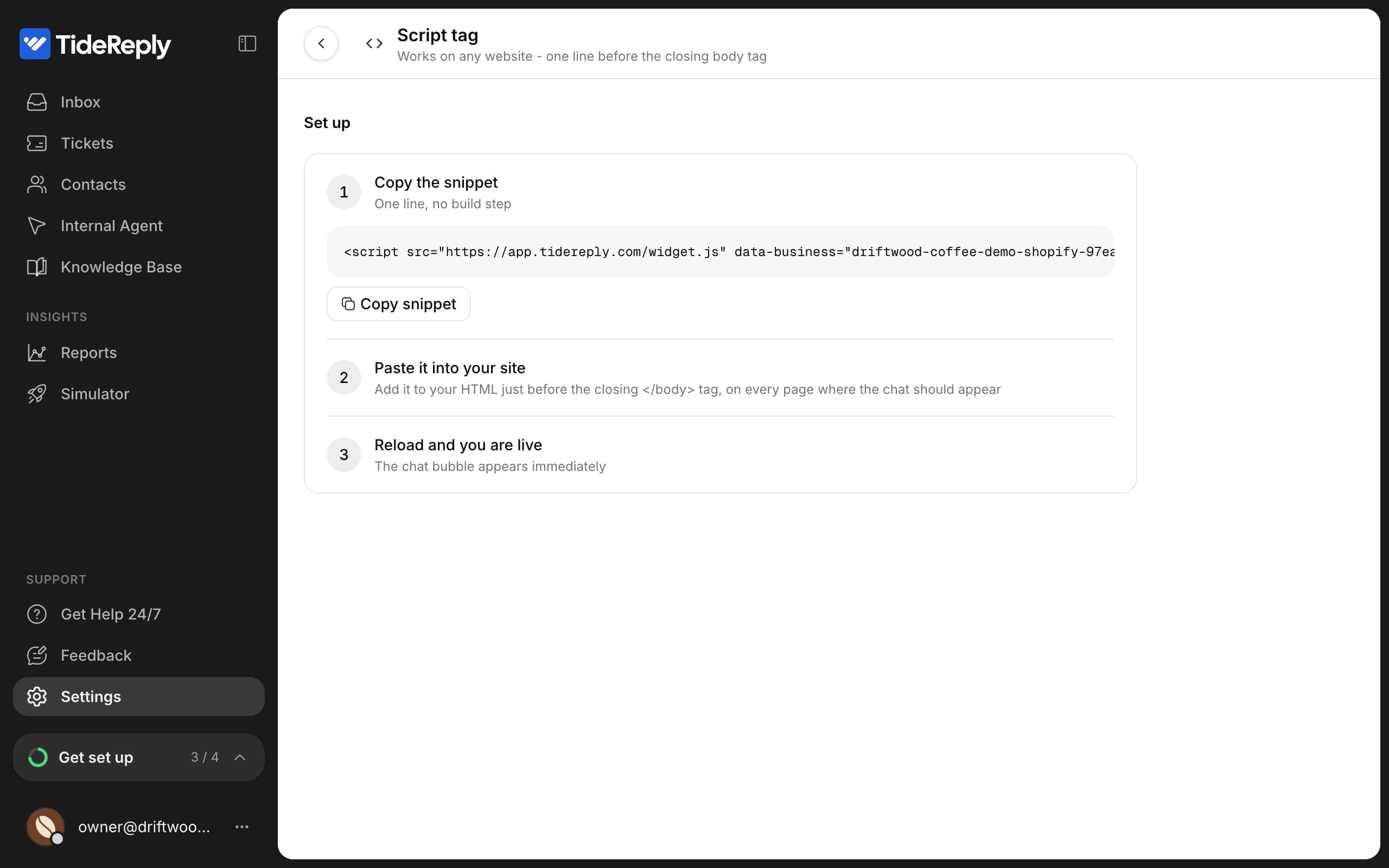
Paste it into your site
Put the snippet just before the closing </body> tag, on every page where the chat should appear. Most site builders have a place for site-wide code:
Wix
- Go to Settings and open Custom Code (under Development & integrations).
- Click + Add Custom Code and paste the snippet.
- Under Add Code to Pages, choose All Pages. Under Place Code in, choose Body - end.
- Click Apply.
Squarespace
Code Injection needs a Core, Plus or Advanced plan (or an eligible older plan).
- In the Pages panel, open Website Tools > Code Injection.
- Paste the snippet into Footer.
- Click Save.
Webflow
- Open Site settings > Custom code.
- Paste the snippet into Footer code and save.
- Publish your site. Custom code only goes live after publishing.
BigCommerce
- Go to Storefront > Script Manager and click Create a Script.
- Give it a Script name, for example "TideReply chat".
- Set Placement to Footer, Location to Storefront pages and Script category to Functional.
- For Script Type, choose to enter the script yourself (not a URL), and paste the snippet.
- Click Save.
Framer
- Open your project's Site Settings and go to Custom Code.
- Click Add Script, paste the snippet, and place it at the end of the body.
- Publish your site.
WordPress without the plugin
Install a code snippet plugin such as WPCode, add a new HTML snippet, set its location to the site-wide footer, and activate it. The TideReply plugin is easier, and adds WooCommerce order answers.
Your own HTML
Paste the snippet before </body> in your page template, or in every page if you don't use one.
Check it
Reload your site. The chat bubble appears in the bottom corner.
The chat only loads on the domains you allow. Your website's domain is allowed from the start, including its subdomains. Installing on another domain, like a staging site or a second shop? Add it under Settings > Chat widget > Allowed domains.
Prefer not to touch your site's code? Use Google Tag Manager. Chat not showing? See The chat doesn't show on my site.