TideReply answers only from what you give it: your website, your files and the facts you tell it, plus your store's orders if you connect Shopify or WooCommerce (see Order answers). It doesn't use outside information and it doesn't guess. When your knowledge doesn't cover a question, it says so and offers to pass the customer to your team.
Everything it can answer from lives in Knowledge Base in the left menu.
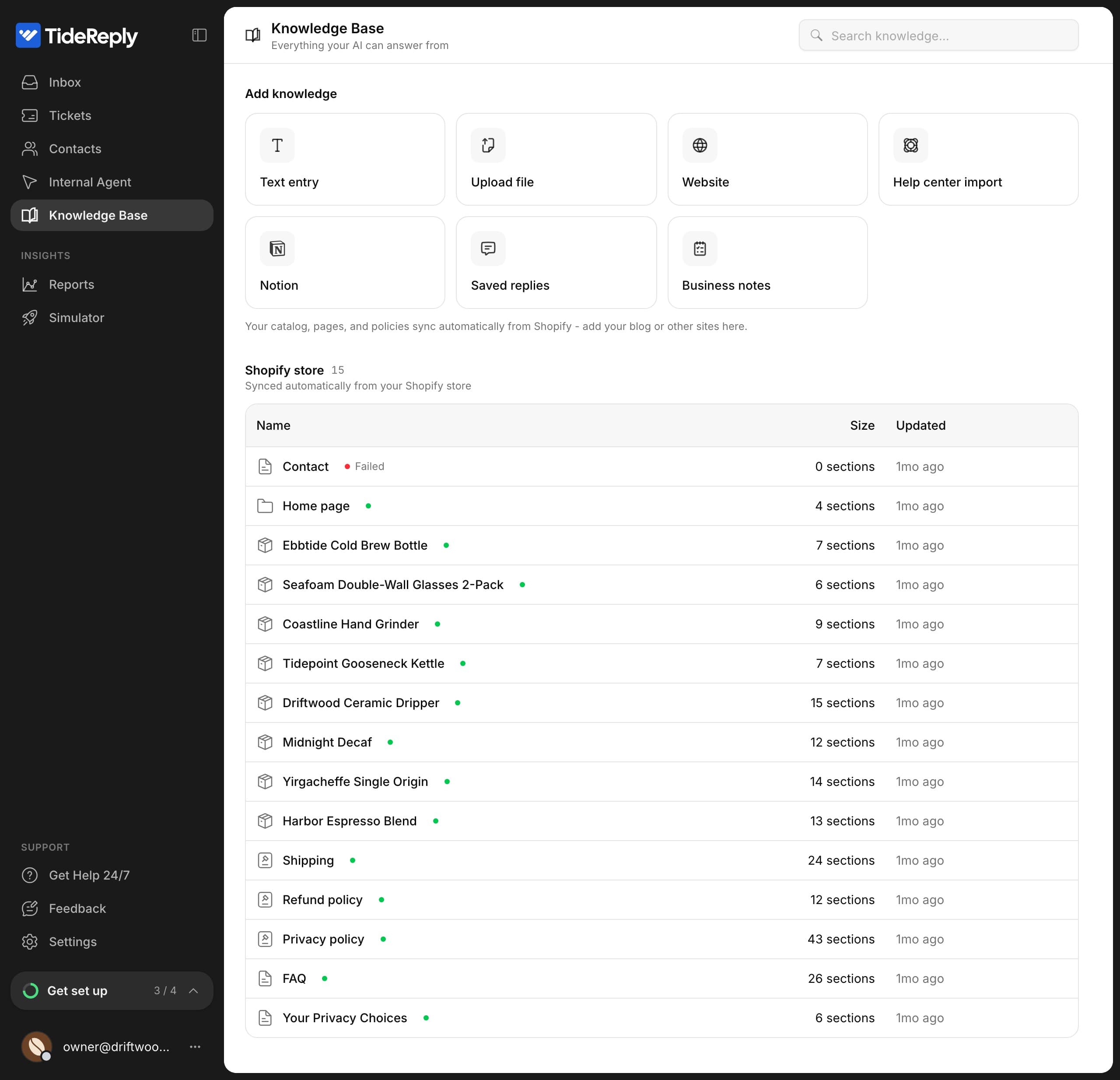
What you can add
| Source | Best for |
|---|---|
| Website | Your shipping, returns, product and FAQ pages. See Add your website. |
| Upload file | PDF, Word, Excel, CSV or text files, up to 4 MB. See Upload files. |
| Text entry | Answers that aren't on your site. See Add text and FAQs. |
| Help center import and Notion | Content you already keep in Zendesk, Intercom or Notion. See Import from Notion, Zendesk or Intercom. |
| Business notes | Short facts that change, like "We don't ship to Japan from Monday". See Tell the AI what changed. |
On Shopify, your products, collections, pages and policies sync on their own. You only need to add what isn't in your store, such as your blog or a separate help site.
Saved replies are also listed in Knowledge Base, but they are shortcuts for your team's own replies. The AI doesn't answer from them.
Which source wins
Business notes win over anything else. If a note says one thing and an old page on your site says another, TideReply follows the note. That makes notes the fastest way to correct something without editing your website.
How fast changes take effect
- Text entries are live as soon as you save them.
- Websites, files and imports are read in the background. They're live once their status shows Ready, or Warnings if some pages couldn't be read.
- Edits and deletions take effect right away.
Status names
| Status | Meaning |
|---|---|
| Pending | Waiting to start. |
| Crawling | Being read. You can leave the page. |
| Ready | Live. The AI answers from it. |
| Warnings | Live, but some pages couldn't be read. Open the source to see which. |
| Failed | Nothing was read. Open the source to see why, then Retry. |
What to add first
- Your website, so the basics are covered.
- The questions your team answers most, as text entries.
- Then open Simulator and ask what your customers ask. Anything it can't answer shows you what to add next. See Test your AI before customers do.
For a checklist of topics, and which place each kind of information belongs in, see What to add, and where it goes.