Your team reads every conversation in its own language and replies in the customer's. A customer writes in Spanish, you read it in English, you reply in English, and the customer gets your reply in Spanish.
Choose the language you read in
- Team language: open Settings > General and choose a Team language. Your whole team reads the inbox in it. It starts as your default language.
- My language: open Settings > Profile and choose My language. It's just for you, in every store you work in, and it takes the place of the team language.
Read a conversation
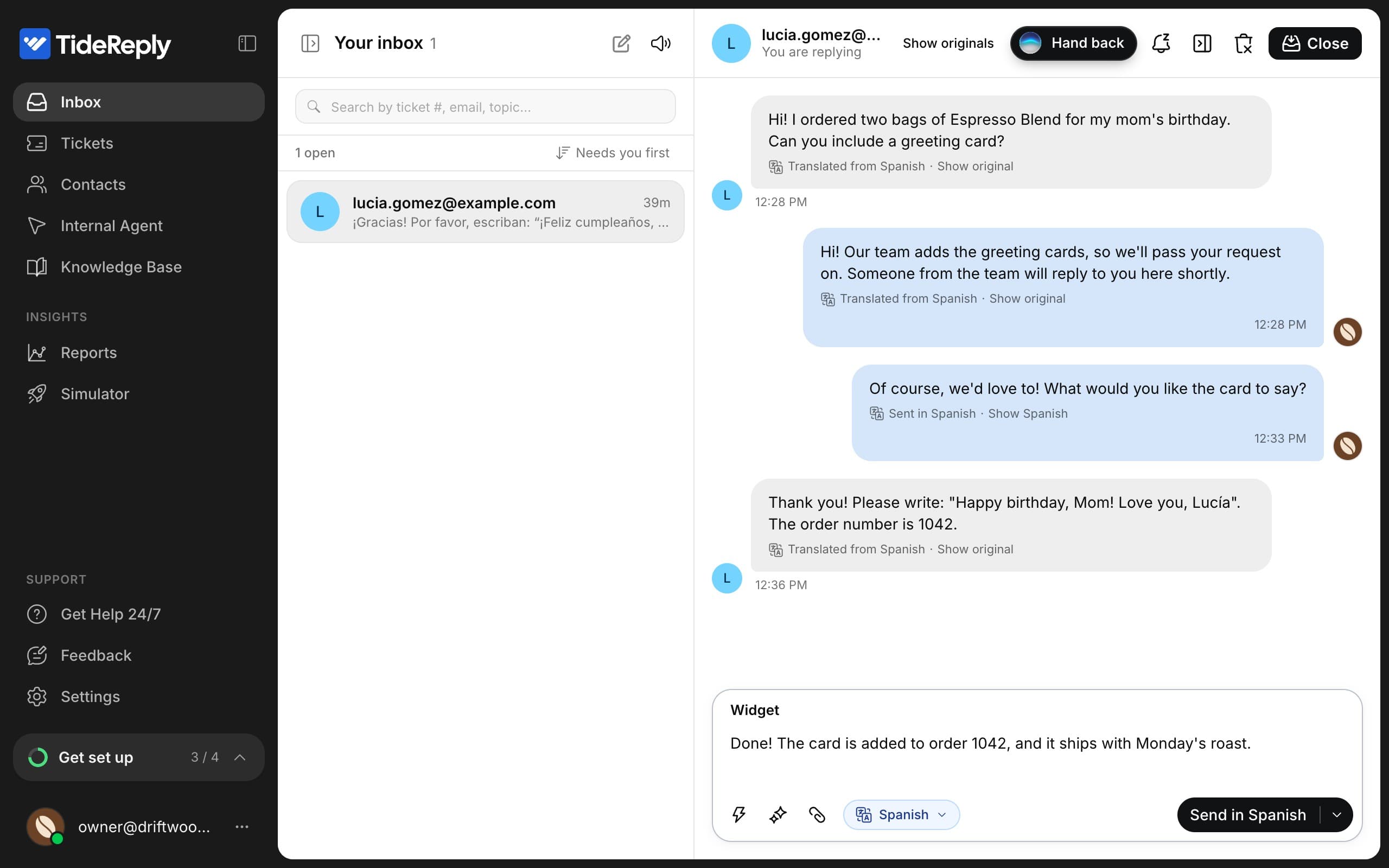
Open a conversation. Messages written in another language show in yours, with a line under them: Translated from Spanish · Show original.
- Show original shows that one message as it was written.
- Show originals at the top of the conversation shows every message as it was written. Show translations switches back.
- Messages already in your language, and messages that are only a number or a code, show as they are.
- Replies from the AI and your teammates show in your language too, so you can follow a conversation someone else answered.
Reply in the customer's language
The language button next to Send shows the language your reply goes out in. It starts with the customer's language.
- 1
Write in your language
Write your reply as you normally would. The button now says Send in Spanish.
- 2
Send
Press Send in Spanish. In a website chat, Messenger or Instagram, the reply goes out in Spanish right away. An email shows you a preview first (see below).
Your messages show in the conversation as you wrote them: Sent in Spanish · Show Spanish. Click Show Spanish to see what the customer got.
If you write in the customer's language yourself, your reply goes out as you wrote it.
Numbers, codes and links are checked
Before anything goes out, TideReply checks that every number, code and link you wrote is in the translation. If one isn't, the reply waits and shows what's different, for example You wrote 5, the translation says 7. You can:
- press Change to 5 to fix it,
- edit the translation yourself, or
- press Send anyway.
Emails show a preview
A translated email always opens Check the email before it goes out first. What you wrote is on one side and the email in the customer's language on the other. You can edit the translation, and the subject of a new email, before you send it. Back to my text takes you back to what you wrote.
Pick another language, or don't translate
Click the language button to:
- Pick another language. The languages from this conversation are at the top, and Search all languages finds the rest.
- Don't translate. Your reply goes out exactly as you write it.
Your choice is kept for that conversation in your browser.
AI email drafts
When the AI drafts an email reply for you, you read the draft in your language.
- Send sends the draft in the customer's language, as the AI wrote it.
- Edit opens the draft in your language: Editing in your language · goes out in Spanish. Make your changes and send, and you'll see the email preview first.
- Write in Spanish instead lets you edit the email in the customer's language directly.
What isn't translated
- Internal notes
- Attachments
- Your email signature
If a translation looks wrong
- Show original always shows exactly what the customer wrote.
- If a message says Could not translate or Translation paused for now, you see it as it was written. Open the conversation again a bit later.
- To send a reply exactly as you wrote it, choose Don't translate.