TideReply doesn't charge per seat: your whole team is included in your plan.
- 1
Open Team
Go to Settings > Team and click Invite member.
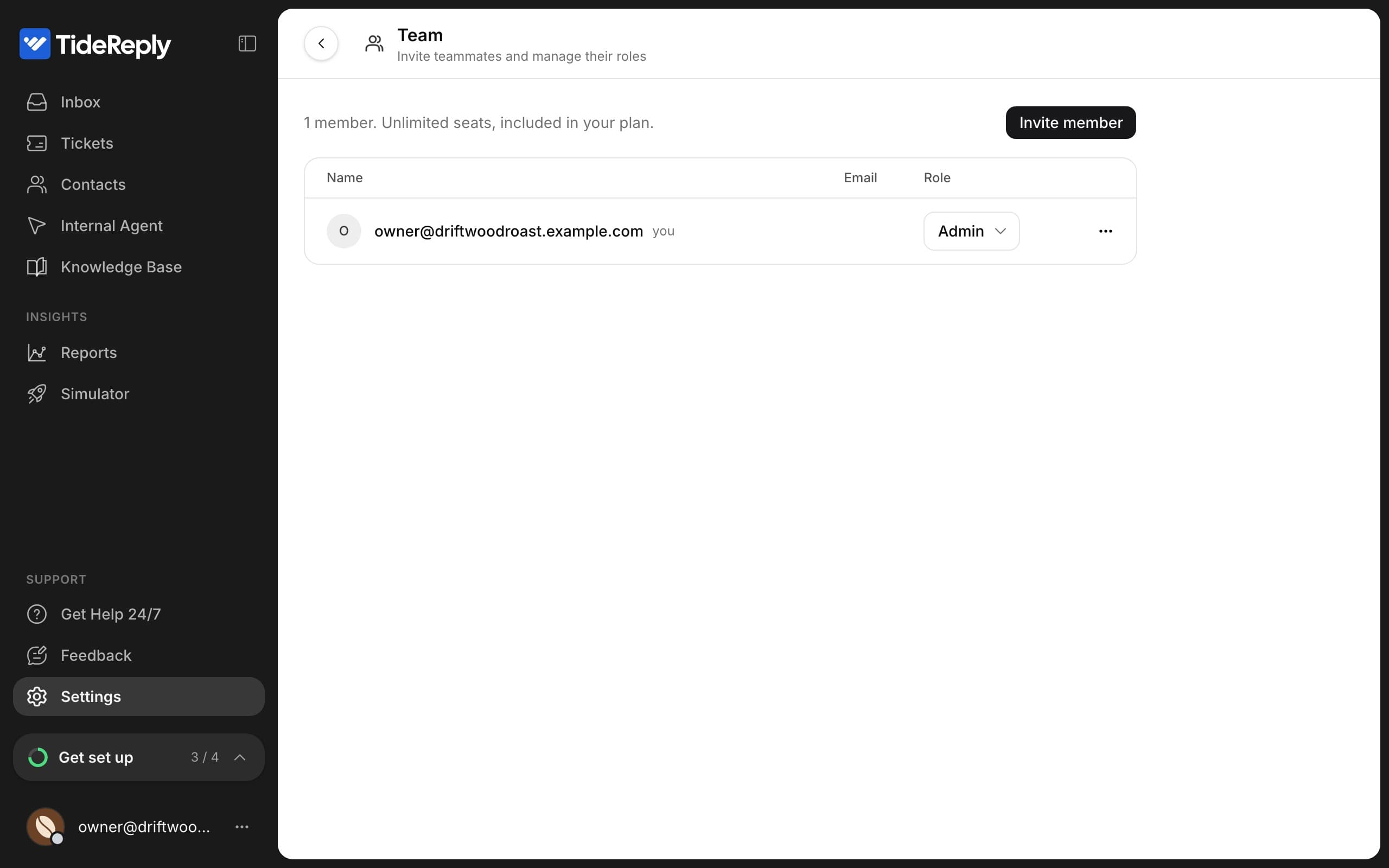
- 2
Choose a role
Enter their email and choose a role:
- Support agent: works conversations, tickets and the knowledge base.
- Admin: everything a support agent can do, plus settings and the team.
- 3
Send the invite
Click Send invite. They get an email invitation to join.
Only admins can invite.
What each role can do
| Support agent | Admin | Owner | |
|---|---|---|---|
| Inbox, tickets, contacts | Yes | Yes | Yes |
| Knowledge Base, Internal Agent, Simulator, Reports | Yes | Yes | Yes |
| Their own profile and notifications | Yes | Yes | Yes |
| Settings, channels, integrations, team | - | Yes | Yes |
| Manage billing and buy credits | - | - | Yes |
| Delete the account | - | - | Yes |
The Owner is the person billing is attached to. This can't be changed or removed.
Remove a teammate
In Settings > Team, open the member's menu and choose Remove from team. They lose access right away. Their open ticket assignments are cleared, and the conversations and replies they wrote stay.
Your profile
Each teammate sets their own name and picture under Settings > Profile.
More than one business
If you belong to more than one business, click your name at the bottom of the left menu and choose All Businesses to switch between them. Each business has its own knowledge, inbox, team and plan.