The website you entered during setup is already in your knowledge. Add another site (for example a separate help site or blog), or a single page, here.
- 1
Open Website
Go to Knowledge Base and click Website.
- 2
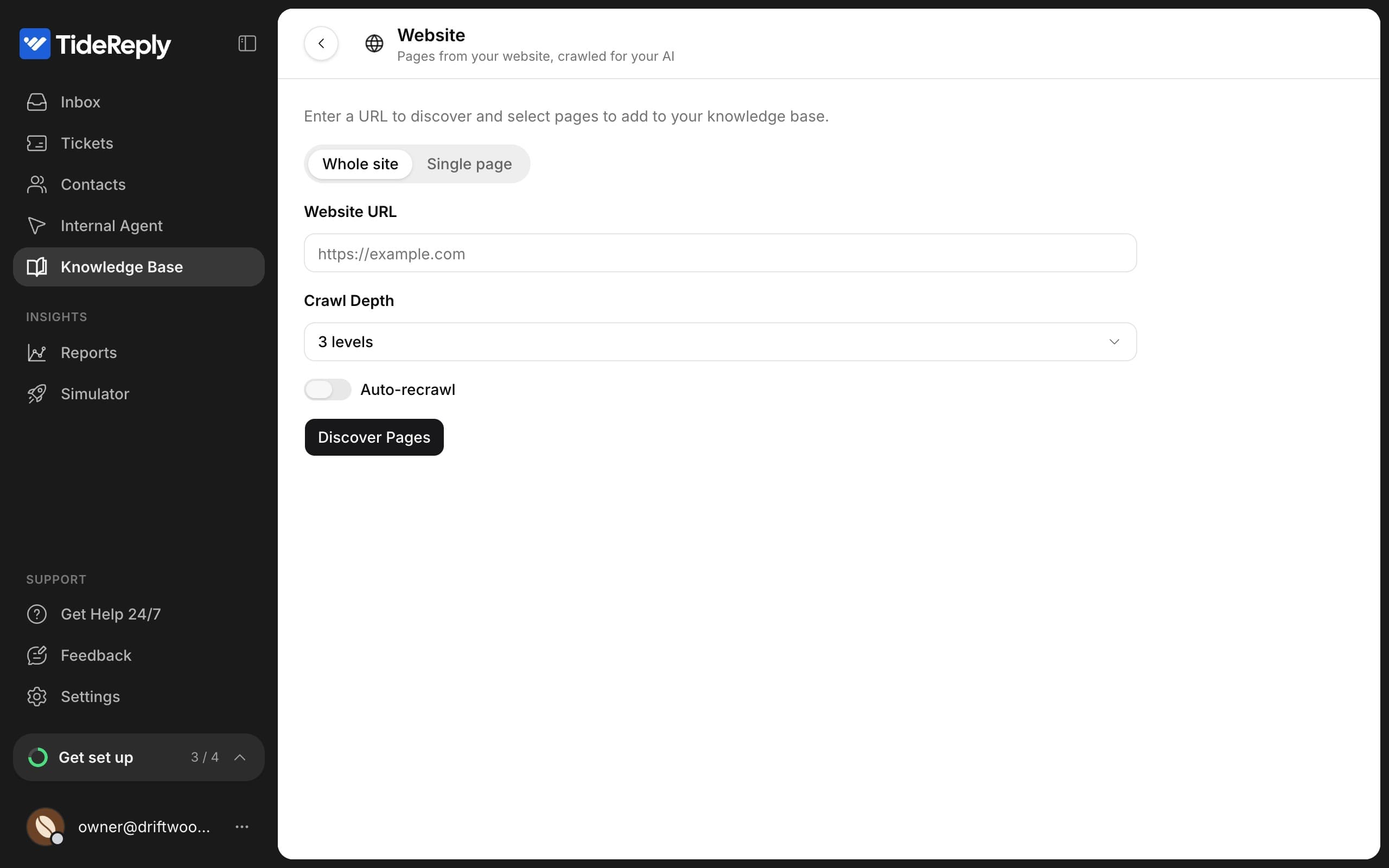
Choose whole site or a single page
- Whole site: enter the Website URL and click Discover Pages. Crawl Depth sets how many links deep TideReply follows from the address you entered (3 is the default and suits most sites).
- Single page: enter the Page URL and click Add Page. Use this for one page, even one that isn't linked from your menu or is on another site.
- 3
Choose when to re-read it
Turn on Auto-recrawl and choose a Recrawl Interval: Daily, Weekly or Monthly. TideReply then re-reads the site on that schedule, so answers follow your live pages. You can only set this when you add the website, so turn it on now.
- 4
Pick the pages
For a whole site, you see every page TideReply found. Some are unticked for you:
- blog, news and press pages
- privacy, terms, cookie and other legal pages
- translated copies of your pages (TideReply already answers in the customer's language)
Tick any you want included, then click Import N Pages.
- 5
Wait until it is live
TideReply reads the pages in the background. You can leave the page. When it's done, the source shows Ready. Warnings means it's live too, but some pages couldn't be read: open the source to see which.
Good to know
- TideReply reads up to 500 pages per site and respects your site's
robots.txt. - Your header, footer and menus are skipped, so answers come from the page content.
- PDFs and other files linked from your site aren't read. Upload them instead: see Upload files.
- Sites that build their pages with JavaScript are read on a best-effort basis. If pages show up as missing, add the important ones as text entries.
- On Shopify, your products, collections, pages and policies are left out here because they already sync on their own. Shopify's default blog lives at
/blogs/news, which is unticked with the news pages: tick it if you want your blog included.
Change it later
Open the source from Knowledge Base to see its pages, when it was last synced and what changed. From there you can re-read it now, change which pages are included, or edit a page. See Keep your knowledge up to date.
If the site won't read, see My website won't import.