Make the chat look like your brand and decide how it greets visitors. Every setting saves on its own as you change it, and shows on your site within a minute.
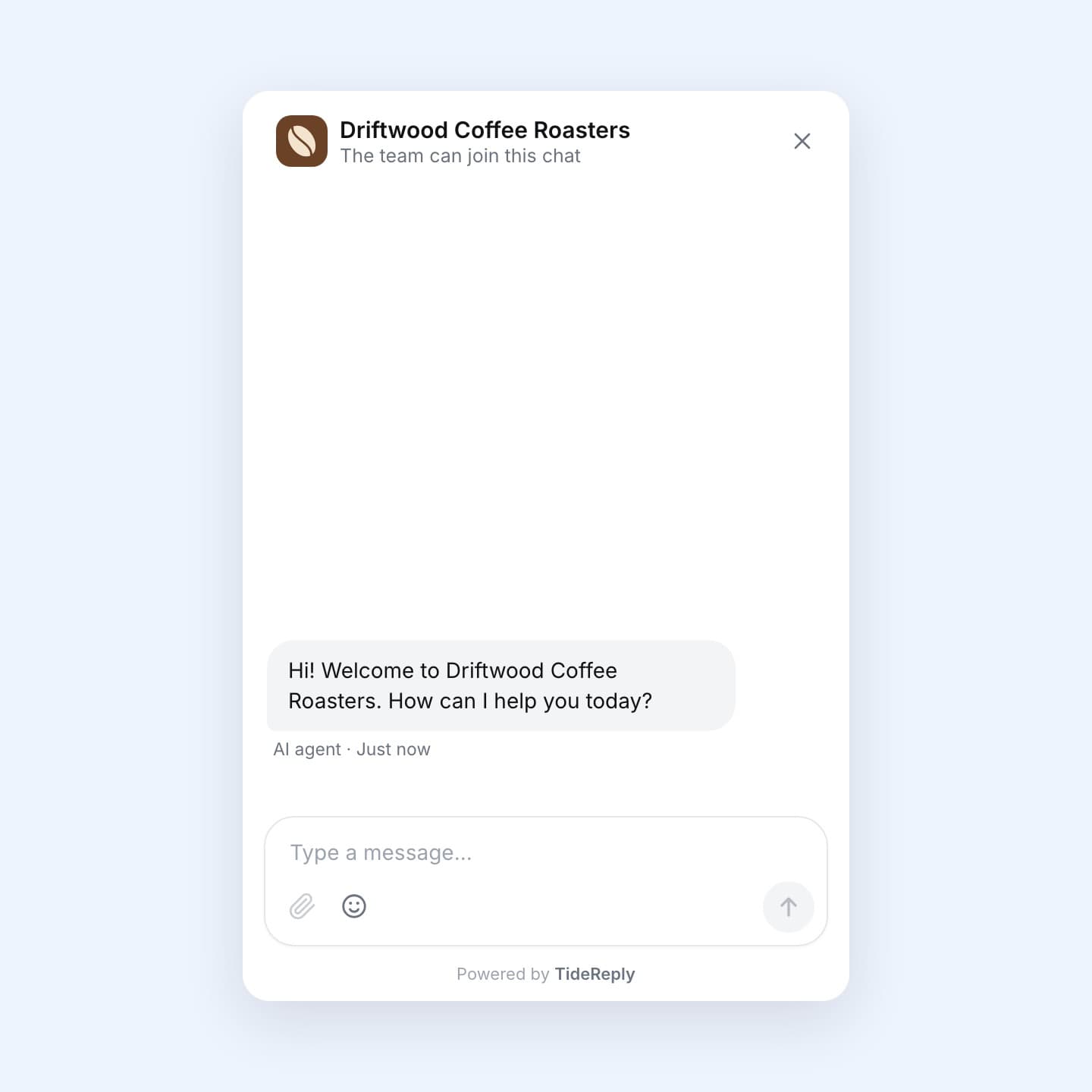
This is what visitors see when they open the chat: your logo and name at the top, then your welcome message.
Name, logo and color
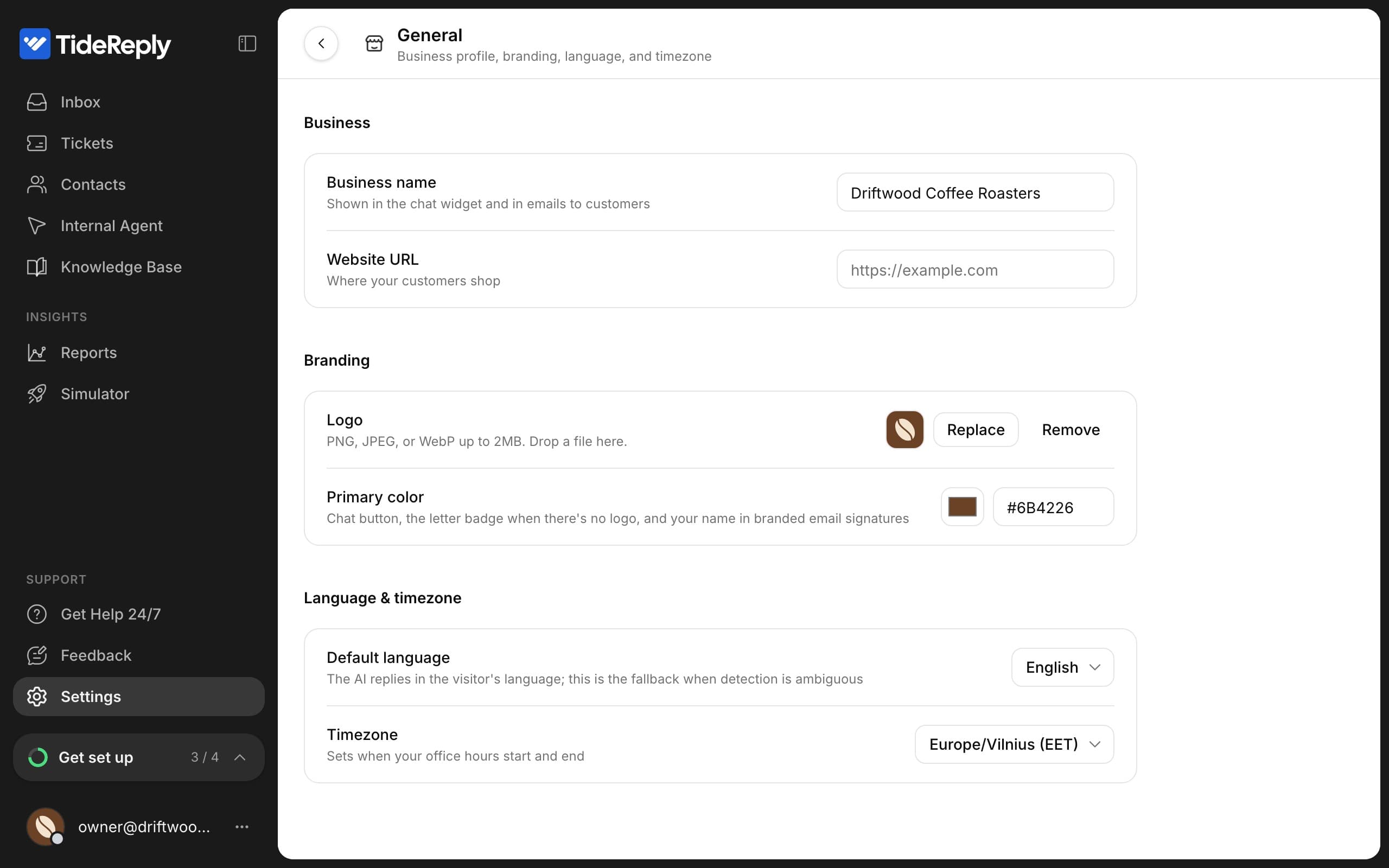
Go to Settings > General:
- Business name: shown at the top of the chat and in emails to customers.
- Logo: shown next to your name in the chat. Use a square PNG, JPEG or WebP image up to 2 MB. Without a logo, the chat shows the first letter of your business name.
- Primary color: the chat button, the letter shown when there's no logo, and your name in branded email signatures.
- Website URL: where your customers shop.
- Default language and Timezone: see Languages.
Welcome message and position
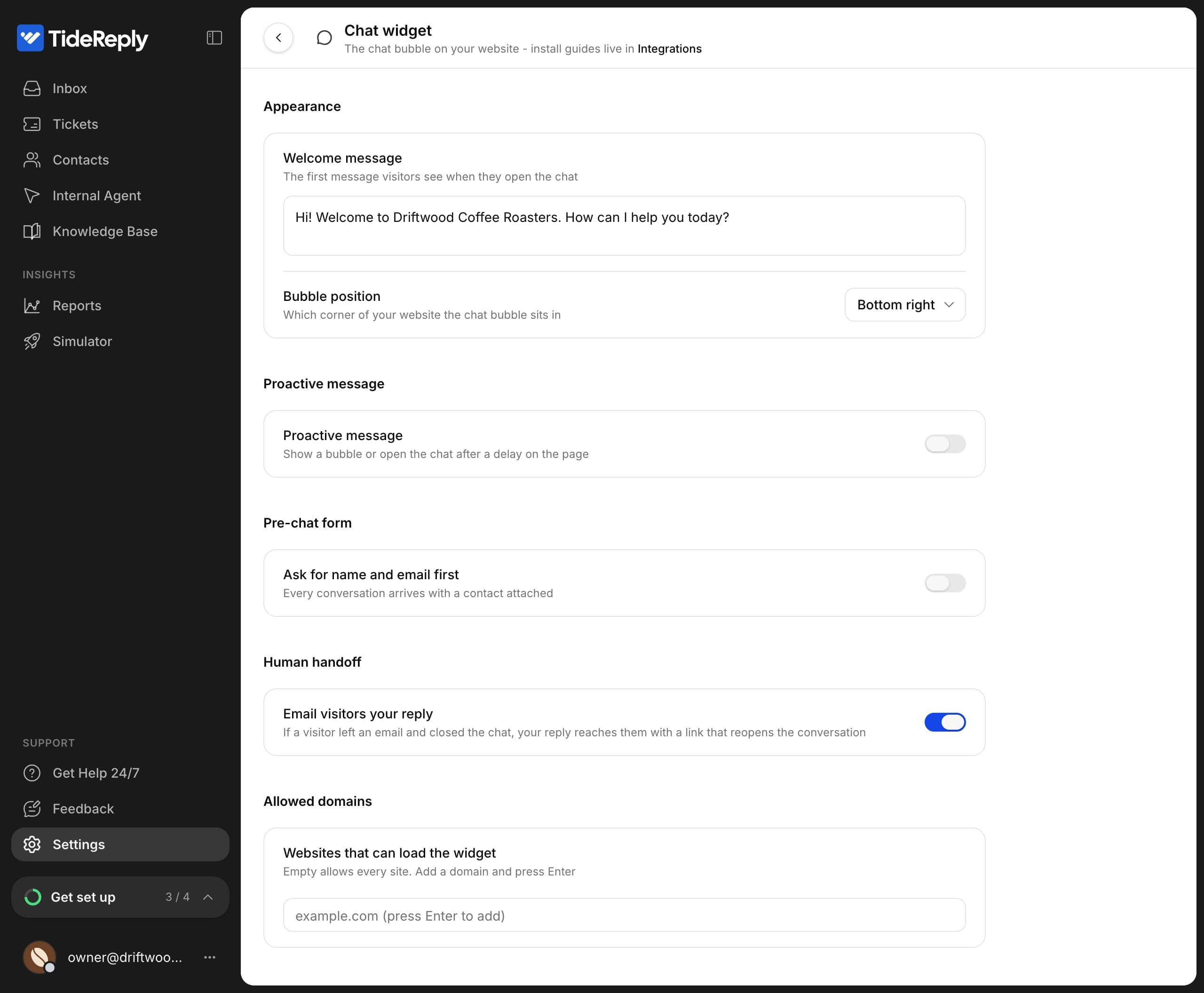
Go to Settings > Chat widget:
- Welcome message: the first message visitors see when they open the chat.
- Bubble position: Bottom right or Bottom left.
On Shopify, set the position in your theme editor instead: App embeds > TideReply chat > Widget position.
Greet visitors first
Turn on Proactive message to reach visitors before they ask:
- What happens: Show a message pops a short message next to the chat button. Open the chat opens the chat window on its own (on phones it shows the message instead, so it never covers the page).
- After: how many seconds after the page loads.
- Message: what it says.
Each visitor sees it once per visit, and not again after they close the chat.
Ask for name and email first
Turn on Ask for name and email first under Pre-chat form. Visitors then fill in both before they can chat, and every chat becomes a contact you can follow up with.
Reply by email when visitors leave
Turn on Email visitors your reply under Human handoff. If a visitor left their email and closed the chat, your team's reply reaches them by email, with a link that reopens the conversation. Only your team's replies are emailed, never the AI's.
Open the chat from your own button
Add this to any link or button on your site to open the chat:
<a href="#" onclick="window.TideReply.open(); return false;">Chat with us</a>window.TideReply.close() closes it again.
How the AI talks
Tone, instructions and what the AI must never do are set in Settings > AI behavior. See Set the AI's tone and rules.
On phones
On phones, the chat opens as a panel from the bottom of the screen. Visitors swipe it down to close it.